
MCP with VS Code Copilot
Connect GitHub Copilot in VS Code to COREY and review IFC models through MCP tools.
COREY's optional MCP service lets GitHub Copilot inspect connected viewer tabs and server-stored IFC models. Copilot can summarize models and validation results, find elements, navigate a connected 3D view, and apply reversible draft edits.
This guide connects to a COREY deployment that already has its MCP companion configured. If you administer the deployment, complete the MCP deployment setup first.
Before you start
You need:
- Visual Studio Code with GitHub Copilot Chat and Agent mode available.
- A running COREY deployment with MCP access enabled.
- A COREY administrator available to approve the initial OAuth connection.
- An open COREY viewer tab with a loaded model if you want Copilot to work with a local browser session. Stored server models do not require an open tab.
Connect Copilot to COREY
Open the MCP server view
Open Extensions in VS Code and search for @mcp. If VS Code shows an
Enable MCP Servers Marketplace button, select it.
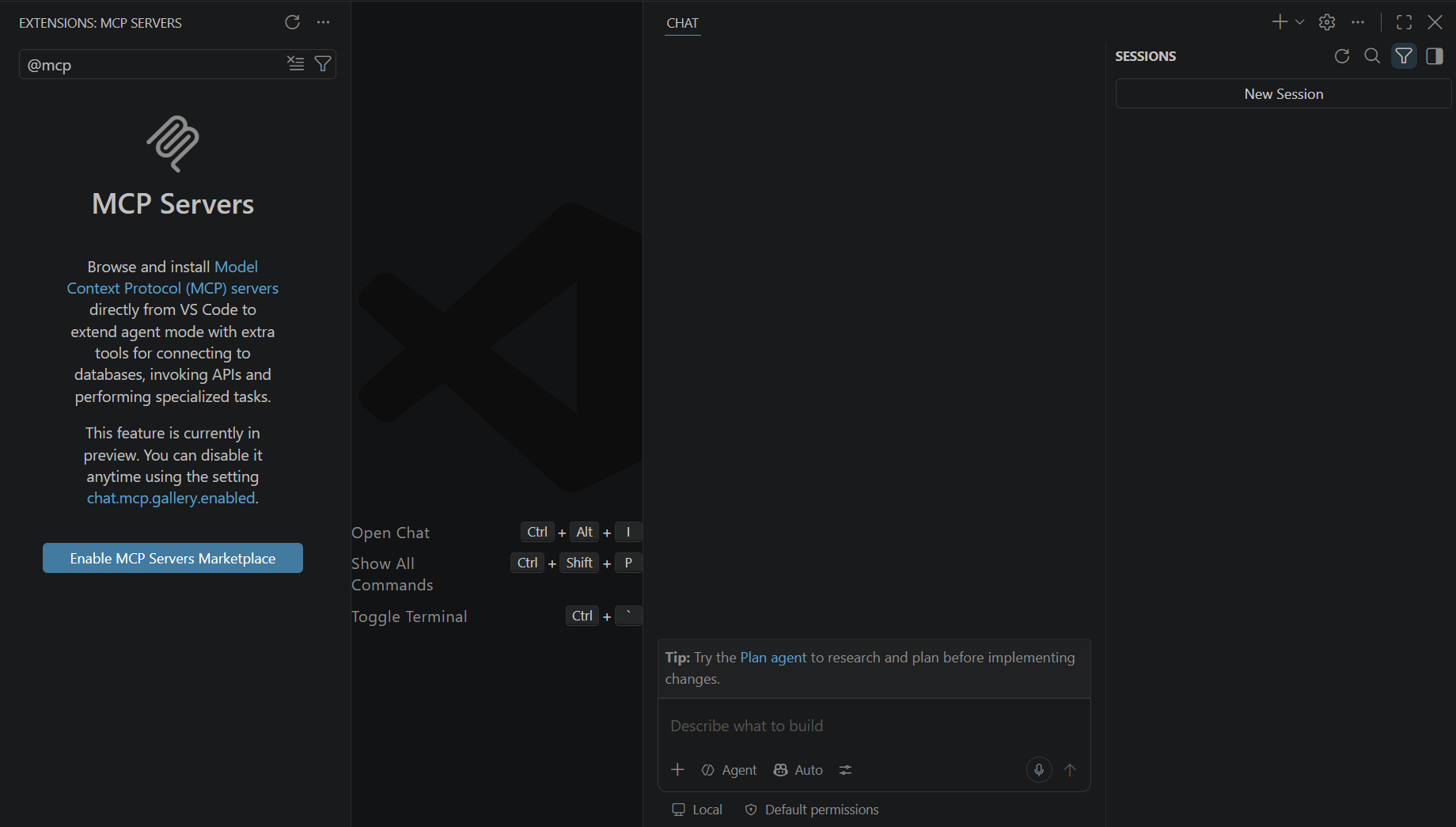
MCP support may need to be enabled the first time you use it in VS Code.
Start the add-server flow
Open the Command Palette with Ctrl + Shift + P on Windows or Linux, or Cmd + Shift + P on macOS. Run MCP: Add Server.
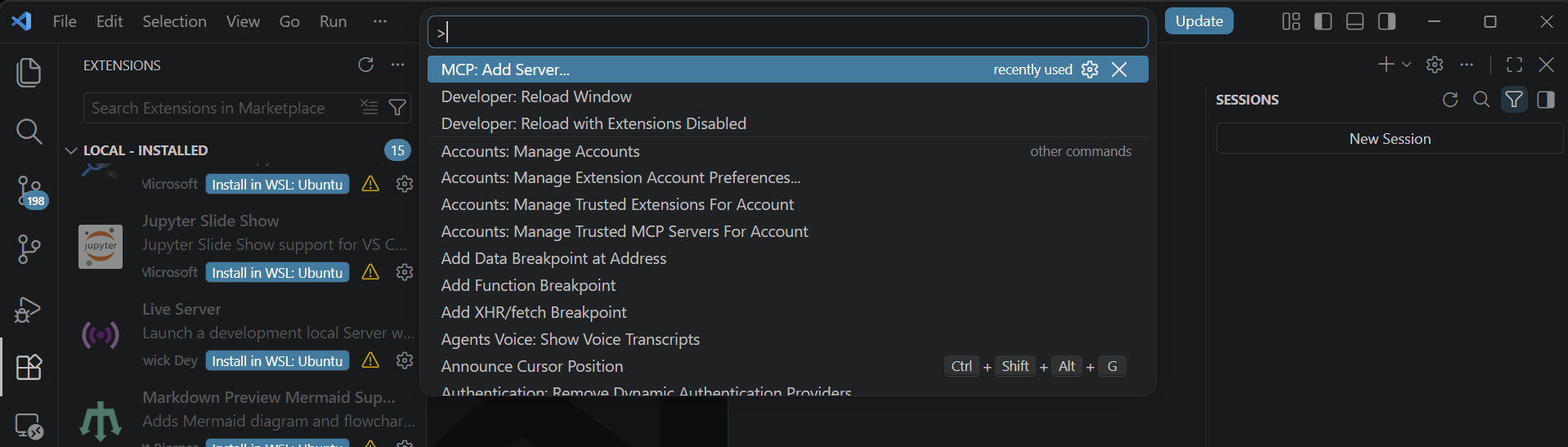
The guided flow creates the MCP configuration for you.
Choose the remote HTTP connection
Select HTTP (HTTP or Server-Sent Events). COREY exposes a Streamable HTTP endpoint, so do not choose the local command, package, or Docker options.
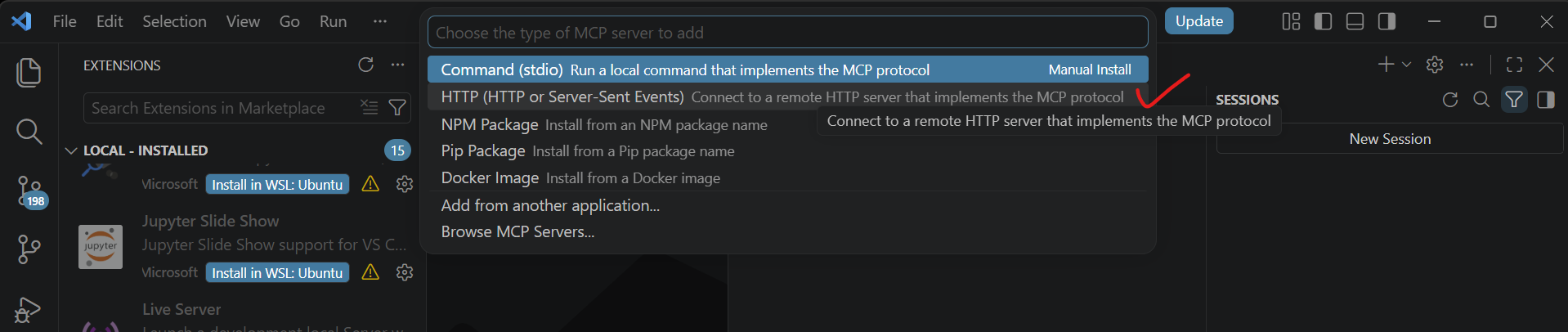
Use the HTTP option for a deployed COREY MCP companion.
Copy the COREY endpoint
In COREY, open MCP. Confirm that deployment access is enabled, then copy the Streamable HTTP endpoint under Connect an MCP client. Paste that URL into VS Code when prompted.
Name the server corey and install it in your user profile so it is available
across workspaces. Use a workspace installation only when your team deliberately
wants to share a secret-free server configuration.
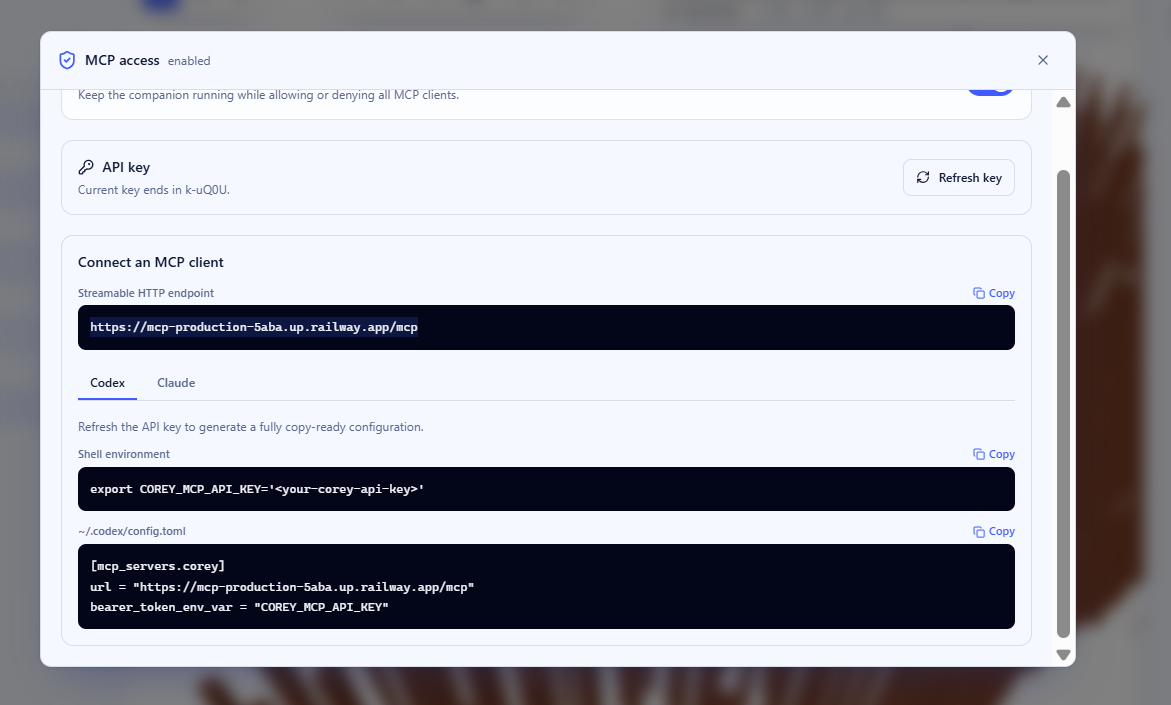
Copy your deployment's endpoint. The hostname shown here is only an example.
VS Code connects through COREY's OAuth flow. Do not copy an API key into a workspace file or commit credentials to source control.
Trust and authorize the server
Review the server URL when VS Code asks whether you trust it, then start the server. VS Code opens COREY's authorization page in your browser. A configured COREY administrator must select Authorize to approve the connection.
After authorization, return to VS Code. Copilot discovers the COREY tools automatically.
Enable the COREY tools
Open Copilot Chat in Agent mode and select Configure Tools beside the chat input. Expand the COREY server and enable the tools you want Copilot to use.
Start with the read-oriented tools for listing targets, summarizing models, querying elements, and reviewing validation issues. Enable view updates or draft editing only when you need those actions.
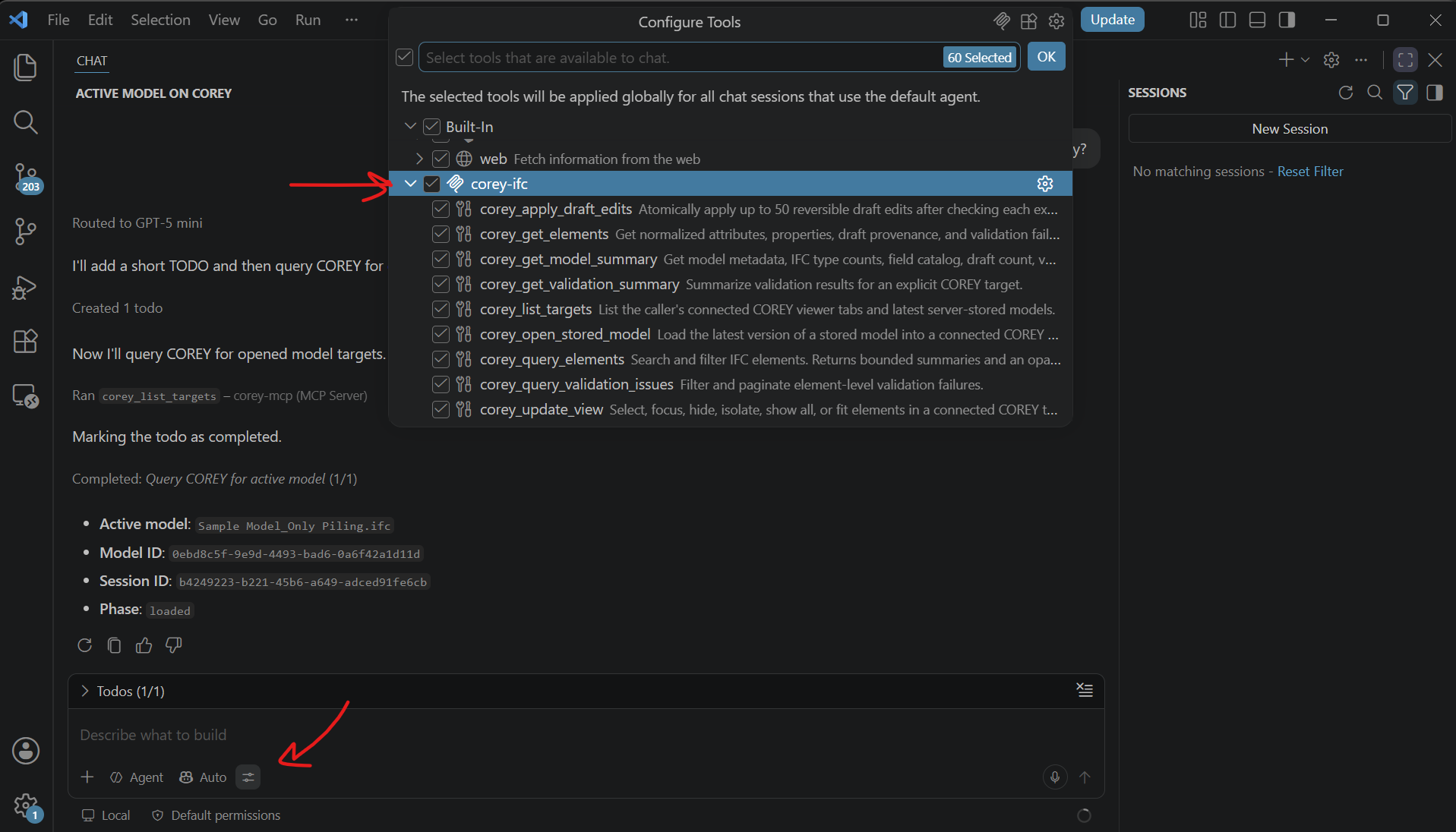
COREY tools appear as one group in Copilot's tool picker.
Test the connection
Ask Copilot to list the available COREY targets before requesting model data:
List the available COREY targets, then summarize the active model and its
validation results.
You can also type @corey in chat to select a specific COREY tool explicitly.
Copilot may ask you to approve a tool invocation before it runs.
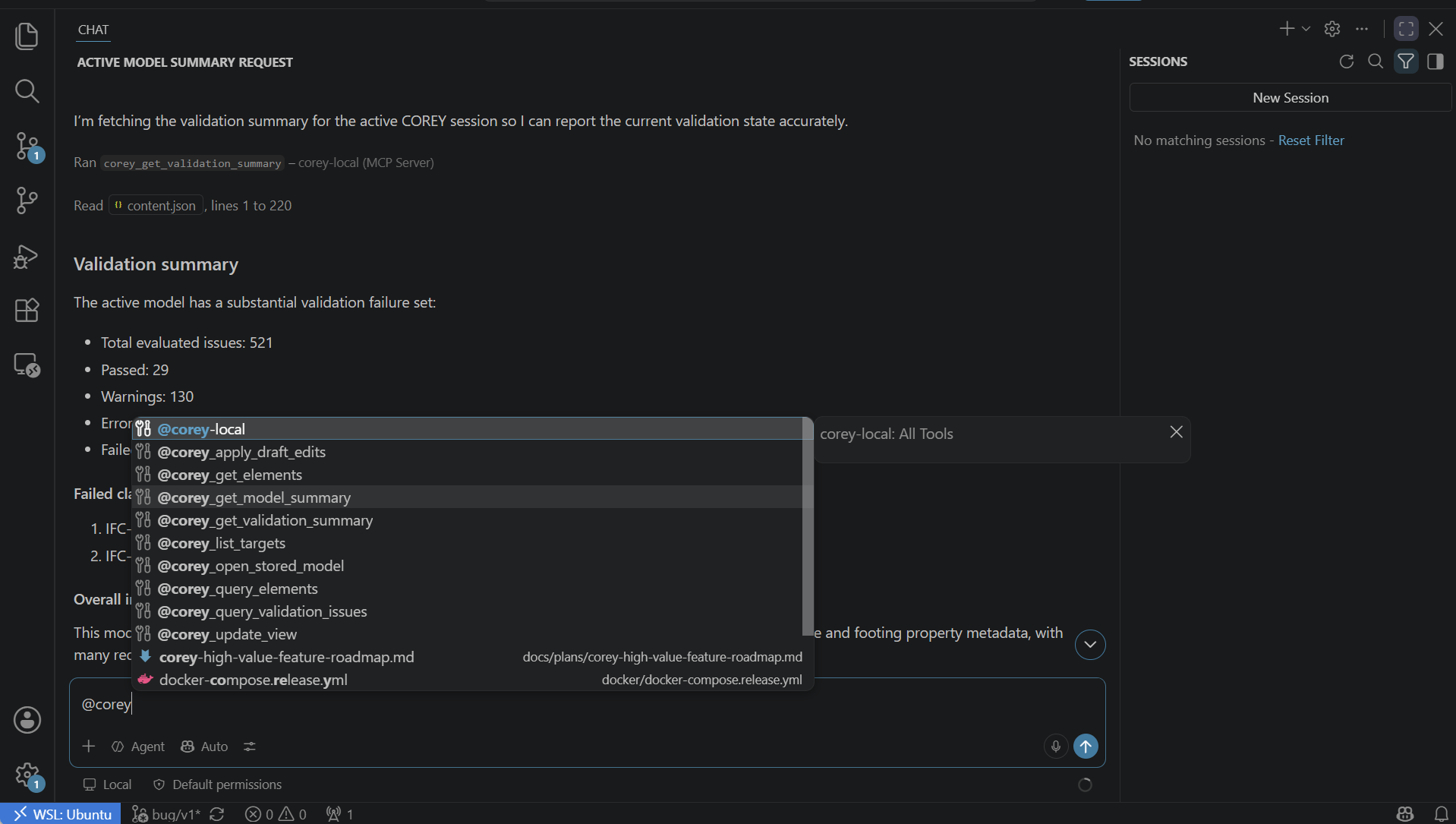
Use an at-mention when you want to choose a COREY tool yourself.
Useful prompts
Try requests such as:
Summarize the IFC type counts for the active COREY model.Find walls with missing FireRating values and group them by storey.Show the validation failures for the active model, ordered by severity.Focus the COREY viewer on the elements returned by the previous query.Be explicit about the target when more than one viewer tab or stored model is available. Copilot can use the session or model identifiers returned by the target-listing tool.
Troubleshooting
The server does not connect
- Confirm that MCP access is enabled in COREY.
- Check that the copied URL ends in
/mcpand useshttps://for a public deployment. - Ask the deployment administrator to verify the MCP companion's
/healthendpoint. - In VS Code, run MCP: List Servers, select
corey, and choose Show Output for connection details.
Authorization is rejected
The browser approval page requires a user included in
COREY_MCP_ADMIN_USERS. Ask a configured administrator to repeat and approve
the connection. If access was disabled after authorization, re-enable it in
COREY and restart the server from MCP: List Servers.
COREY tools are missing
Open Configure Tools in Copilot Chat and enable the COREY group. If the server was upgraded and its tool list changed, run MCP: Reset Cached Tools, then restart the server.
No active viewer target appears
Keep the COREY browser tab open, load the IFC model completely, and confirm the MCP bridge indicator is connected. Server-stored models can still appear as targets without an open viewer tab.
Related documentation
- Deployment explains how administrators run and configure the MCP companion.
- Architecture explains how browser sessions, stored models, and MCP credentials are separated.
- VS Code: Add and manage MCP servers documents VS Code's current MCP controls.