
Workflow
A typical start-to-finish model review, step by step.
This page walks through a normal review session — from opening a model to checking and correcting IFC data — without assuming any technical background. Each step links to the feature it uses.
At a high level, the review loop is:
Open IFC -> validate -> export to Excel -> batch edit -> import -> validate againDemo recording
This recording follows the workflow below using
public/resources/Demo_RevitSampleProject.ifc and the
Demo IfcWall clause template.
Playwright-recorded demo: open the Revit sample IFC, load the starter clauses, validate, and review the table.
Open your model
Launch COREY in your browser (your team will have a link, or run it locally — see
Local Setup). Choose an .ifc file from your computer.
The building appears in the 3D viewport.
Your file is read in the browser. It is not uploaded anywhere unless you are using the optional shared backend.
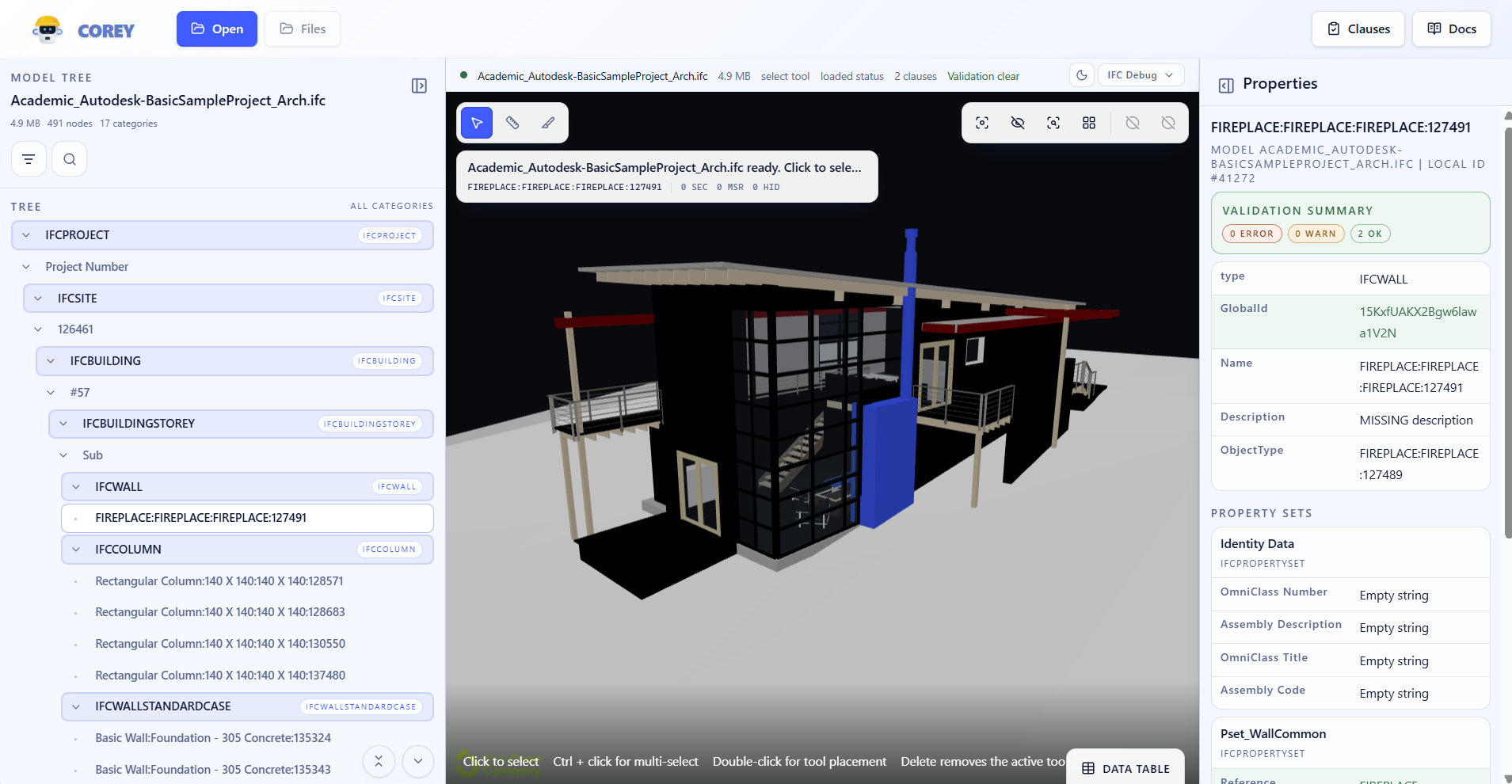
The sample model after local upload and browser-side indexing.
Look around and get oriented
Pan, orbit, and zoom to get a feel for the model. Use the building tree on the side to expand storeys and spaces and understand how the model is organised.
Inspect individual elements
Click an element to open its properties. Check that the information you care about is actually there — names, dimensions, materials, classification codes, and so on. Use Isolate or Hide to clear away clutter while you focus.
Review data in bulk
Open the data table to compare many elements at once. Filter to the elements you're reviewing (for example, all walls), and scan for blanks or wrong values. If many values need the same kind of correction, export to Excel and update them there.
Set up your checks (clauses)
Open the clause editor and choose the checks your model must satisfy — for example "every wall has a fire rating" or "every wall has a GlobalId". You can use a saved set of clauses from your team, or create your own. Full details are on Clauses & Checks.
Run the checks
Run validation. COREY evaluates every relevant element against your clauses and marks each as OK, Warning, or Error. Failing elements are highlighted in the 3D view, so you can see where the problems are, not just that they exist.
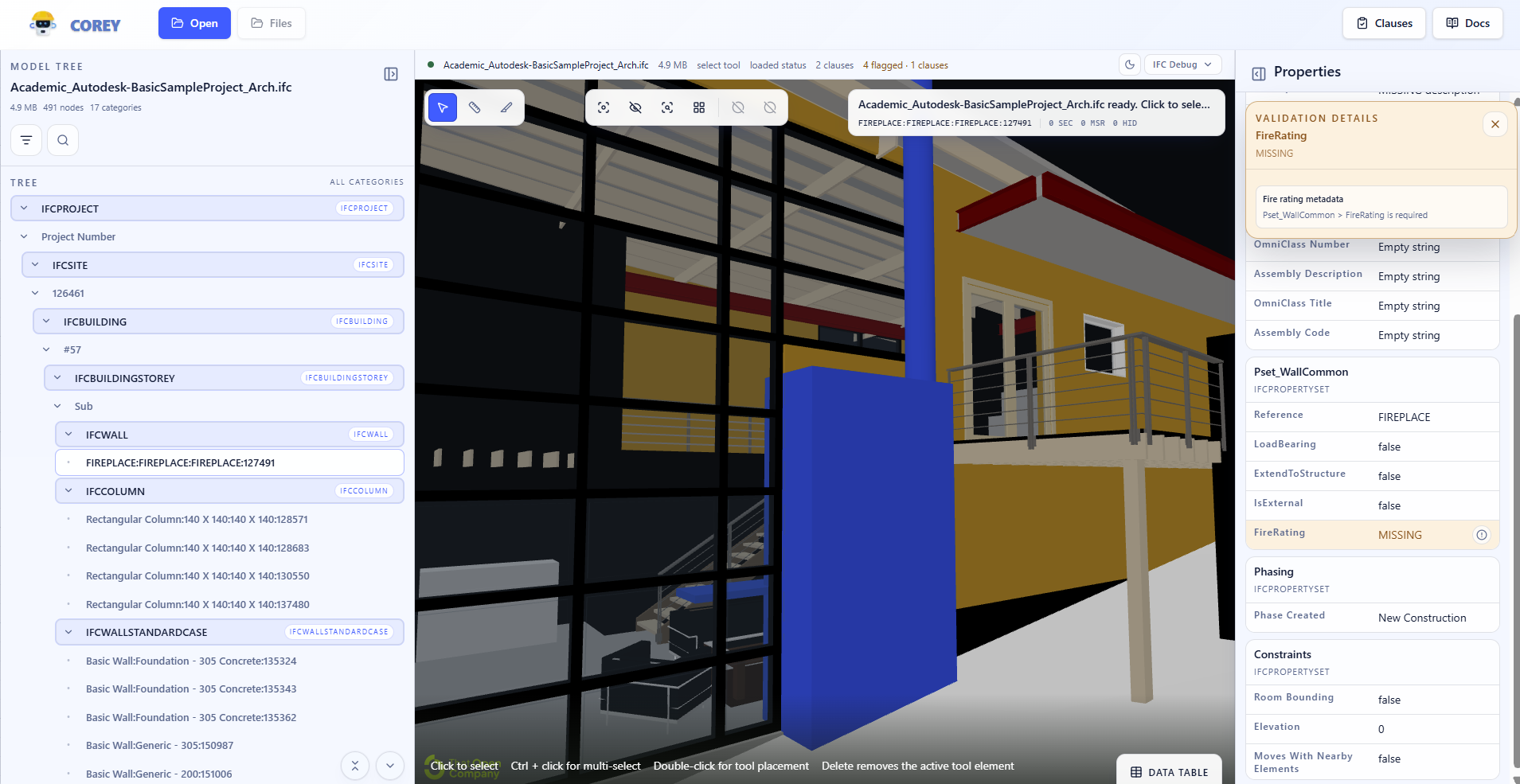
The starter template flags six wall elements missing fire-rating metadata.
Review failed clauses
Open the data table after validation and use the Clauses filter to see which rows were flagged by each failed clause. Select a row to highlight that element in the viewport and inspect its properties.
The data table keeps validation review close to the rows you can correct.
Bring Excel edits back
Import the edited Excel file into COREY, then run validation again. This closes the loop: check the model, fix repeated data issues in bulk, and confirm the updated model data passes the agreed checks.