
Features
A plain-language tour of what you can do with COREY.
COREY helps teams check IFC model data for CORENET X workflows. You can open a model, validate it against agreed checks, export the data to Excel, batch edit values, import the changes, and validate again.
You don't need BIM authoring software to review the model. By default, your files stay on your own computer.
This page describes each feature in everyday terms. If you'd rather follow a start-to-finish example, see the Workflow page.
Open and view models
Open from your computer
Pick an .ifc file from disk. It loads straight into the browser — nothing is uploaded.
3D viewport
Pan, orbit, and zoom around the building, just like a 3D model viewer.
Building tree
Browse the model by its structure — site, building, storeys, and the elements inside each space.
Inspect elements
Click any element — a wall, door, beam, and so on — to see its details:
- Properties: every attribute and property the modeller stored on that element (name, dimensions, materials, classification codes, and so on).
- Location in the tree: which storey or space the element belongs to.
This is the quickest way to answer "what is this, and what information does it carry?"
Correct a field while inspecting
For editable IFC attributes and property-set values, double-click the value in the Properties panel, type the correction, then click away or press Enter. COREY saves the change as a draft automatically; it does not overwrite the IFC file at that point. Read-only identity and derived fields remain unchanged.
When a model has pending changes, COREY shows a Draft label beside Export IFC with the number of edits. Use Export IFC to download a corrected file, or, for a server-stored model, choose Save as new version to write the edited bytes as the next version on the server.
Focus on what matters
When a model is busy, these tools help you concentrate on a subset of it:
| Tool | What it does |
|---|---|
| Hide | Hides the selected elements so you can see past them. |
| Isolate | Hides everything except what you selected. |
| Show all | Brings everything back into view. |
| Focus | Zooms the camera to frame your current selection. |
| Section | Slices through the model with a cutting plane to look inside. |
| Measure | Measures the distance/length between points. |
Review data in a table
Instead of clicking elements one at a time, open the data table to see many elements and their values side by side, like a spreadsheet.
- Filter rows to find what you're looking for.
- Export to Excel to update repeated data issues in bulk.
- Import edited Excel back into COREY, then validate again.
For a step-by-step guide, see Excel Round Trip.
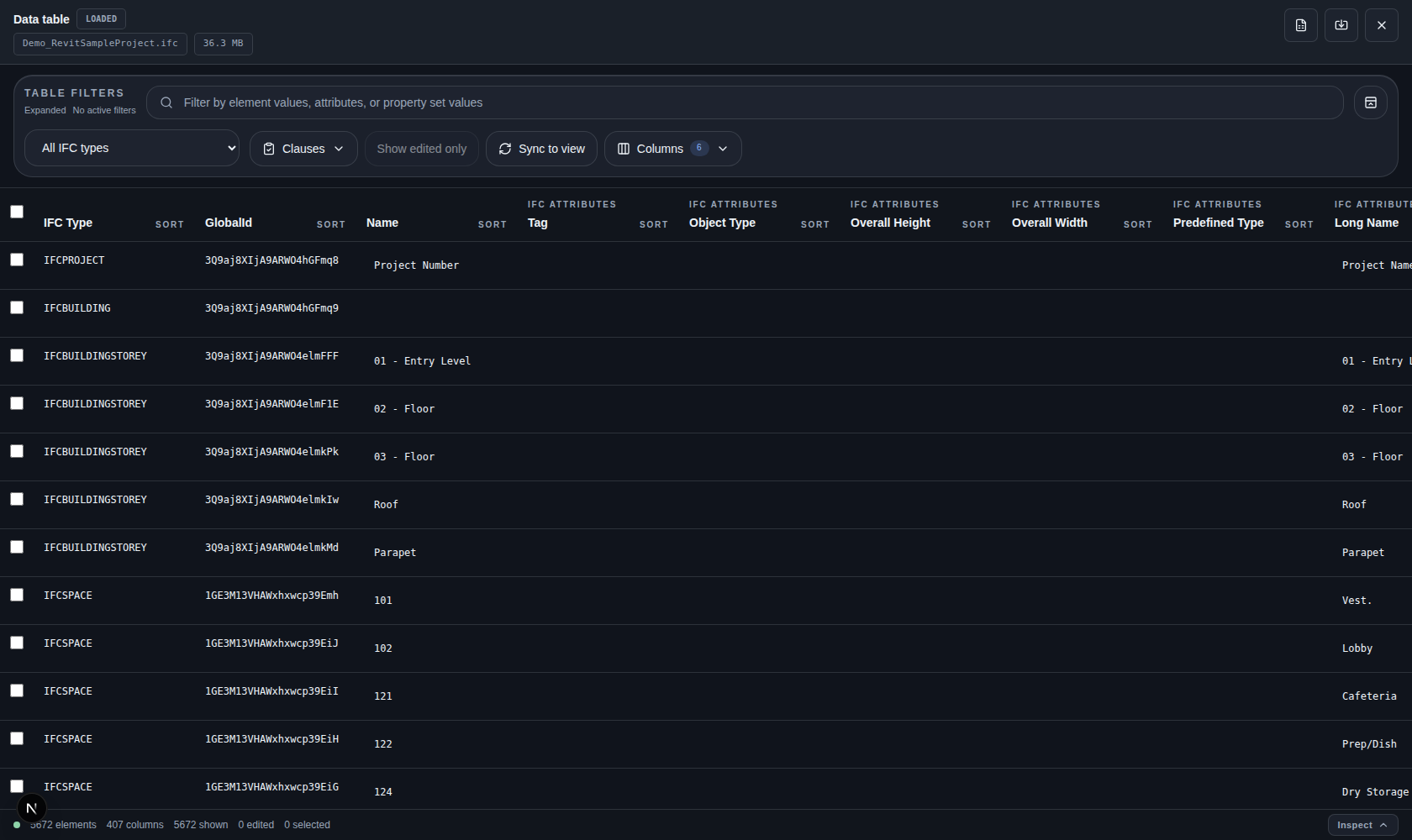
The Revit sample model indexed into the data table for filtering, export, and bulk review.
Check the model against rules
This is COREY's core review capability. You define clauses — named groups of checks such as "every beam carries its required data" — and run them against the model. COREY highlights the elements that pass, warn, or fail, and produces a clause-filtered table view you can act on.
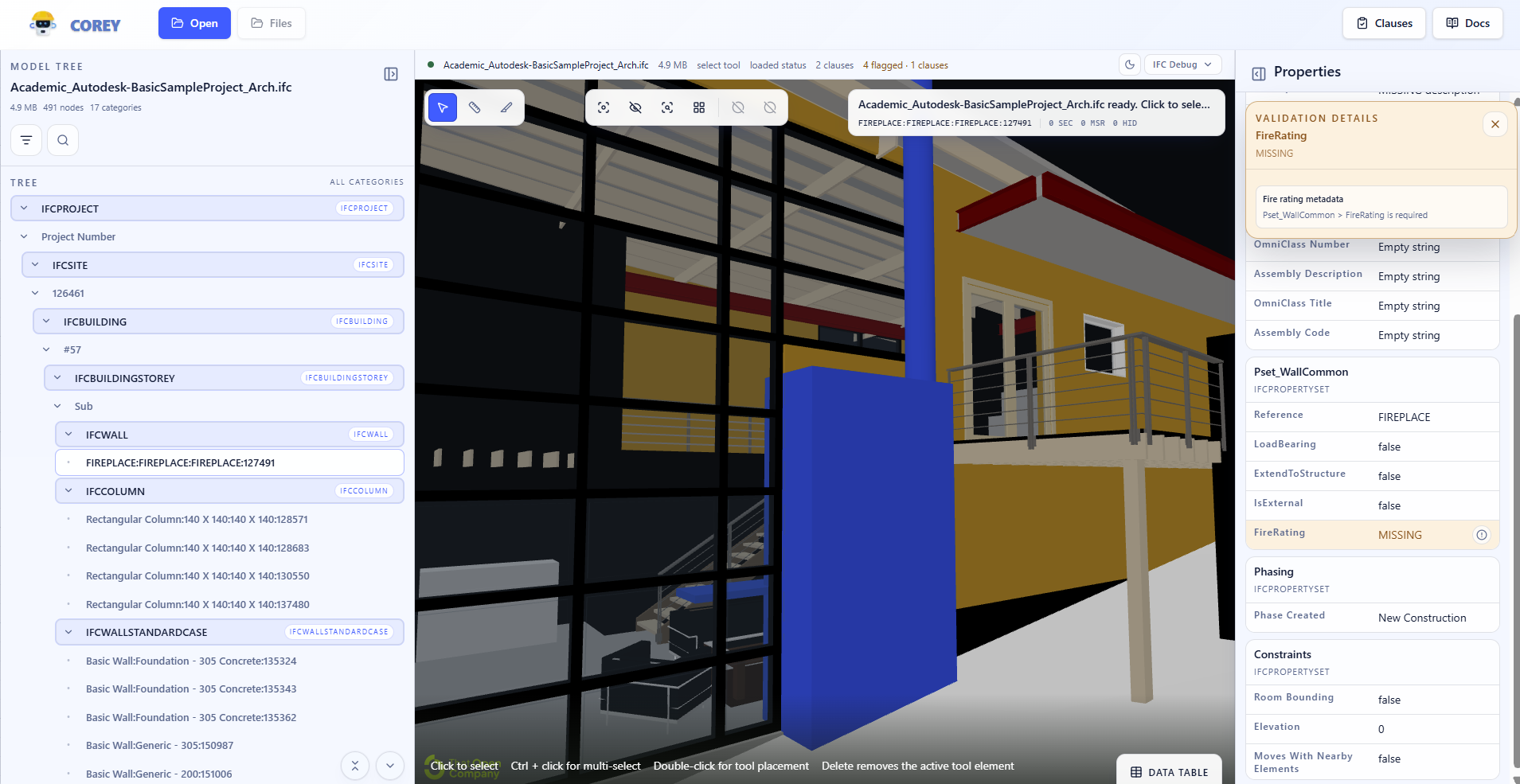
The Demo IfcWall template highlights warning elements directly in the 3D view.
Clauses get their own page
Because rule-checking is the heart of the tool, it's explained in full on the Clauses & Checks page.
Save and share (optional)
By default COREY runs entirely on your machine. If your team sets up the optional backend, you can additionally:
- Store models on a shared server so colleagues can open the same model.
- Keep a version history per model and compare versions — including a side-by-side 3D diff. See Versions & Compare.
- Save review drafts so work isn't lost between sessions.
- Reuse clause templates across projects.
The optional backend is something an administrator sets up once. As a reviewer, you simply open COREY in your browser and use it — see Local Setup.